 StatHawk
Add players one at a time, a whole roster in one go, or, for high school teams, straight from your MaxPreps roster.
Steps
- Open your team and go to the Roster tab.
- Choose +, then Add Player for one player or Add Multiple Players to fill a row per player.
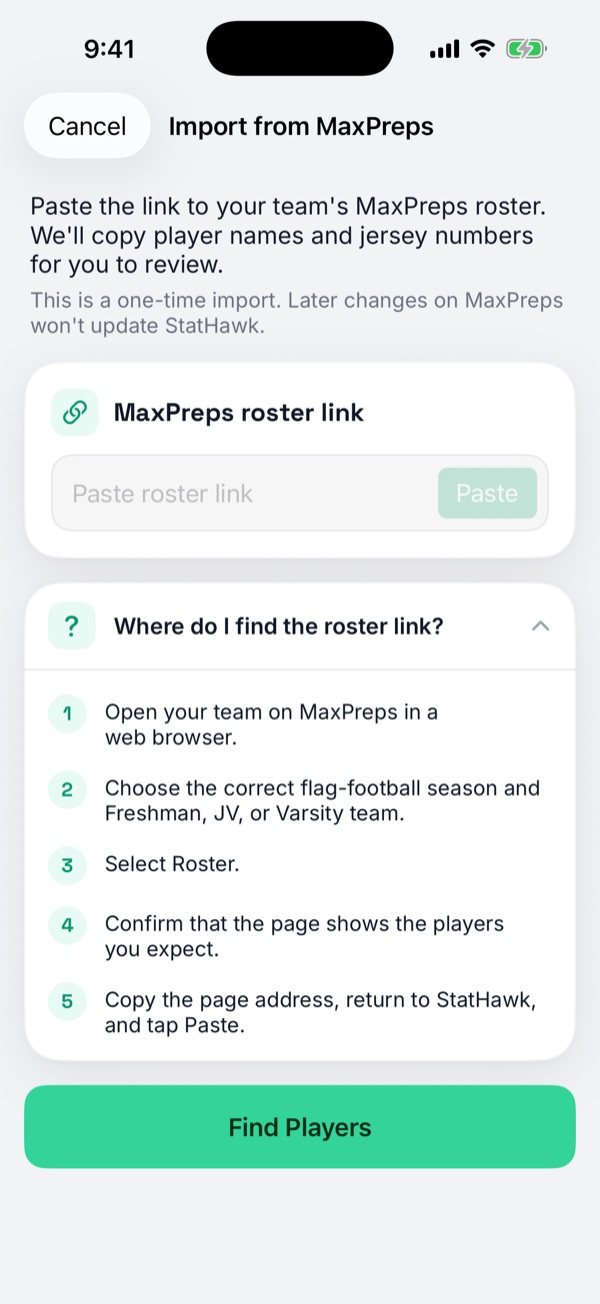
- For a high school team, choose Import from MaxPreps instead. Paste your MaxPreps roster link and choose Find Players.
- Check the list, fix anything with Edit, then add the players.
Edit or remove a player
To edit, open the player and choose ⋯ › Edit Player. To remove, swipe left on the player in the roster and choose Remove. Their past game stats stay.
The MaxPreps import happens once
Later changes on MaxPreps don’t update StatHawk. Add or edit players in StatHawk after that. If a name is already on your roster, StatHawk asks before adding it again.
Did you find this helpful?