 StatHawk
A final game can still be corrected. Add a play you missed, change one you scored wrong, or delete one, and the box score and season stats update when you save.
Steps
- Open the game and choose Fix plays & stats on the Game tab.
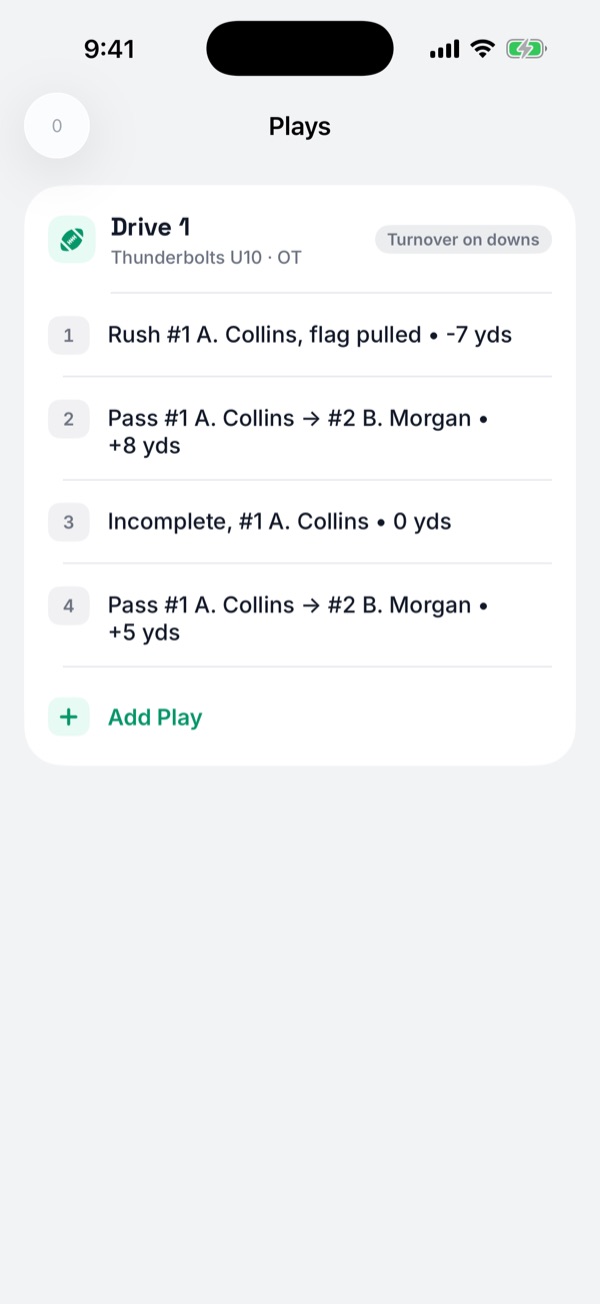
- The Plays list opens. Find the drive.
- To add a play, choose Add Play at the bottom of the drive, or press and hold a play and choose Add Play Above or Add Play Below. Pick the play, the result and the players, then choose Done.
- To change a play, choose it and edit it. To remove one, swipe left on it and choose Delete.
- Choose Review, check the new final score and player stats, then choose Save.
One drive at a time
Save each drive’s changes before moving to the next. Go back from Plays to the Edit Event screen to see every change under Edit History. The newest one can be taken back with Undo This Change.
What this can’t do
You can’t add a whole new drive or reopen the game. Edits need a connection and work for games in the current season. League games are corrected from their Plays tab instead.
Did you find this helpful?